|
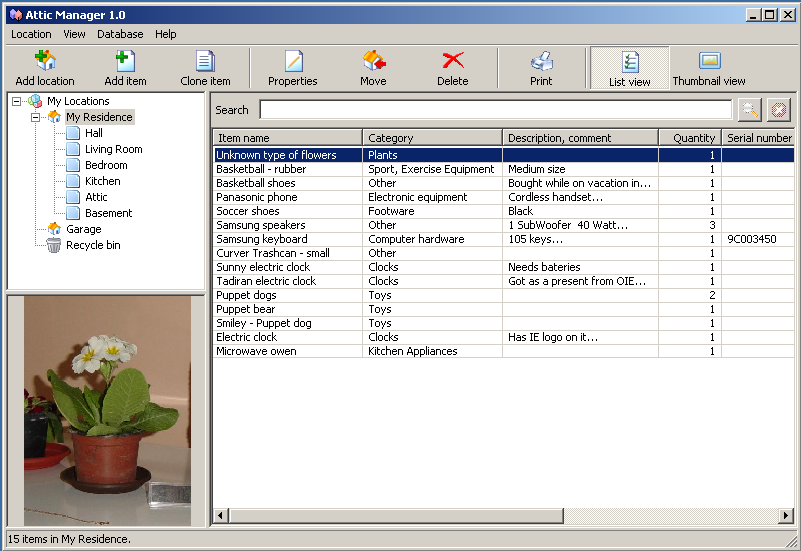
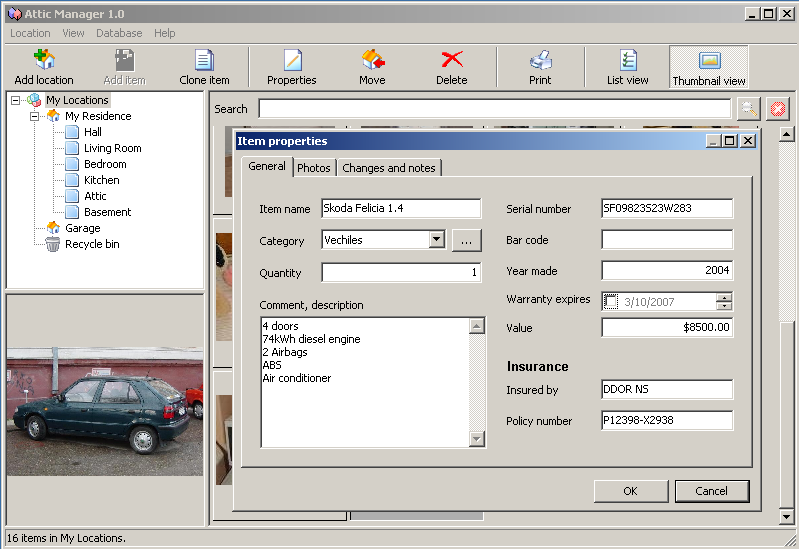
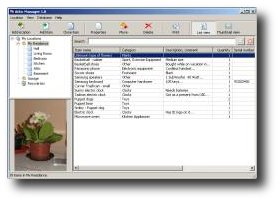
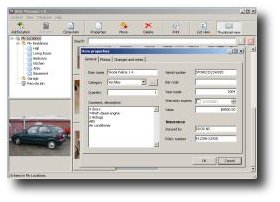
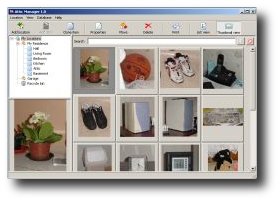
Attic Manager is software used to build and maintain database of your assets:
- Keep track of all the stuff you have
- Look up something when you forget where you stored it
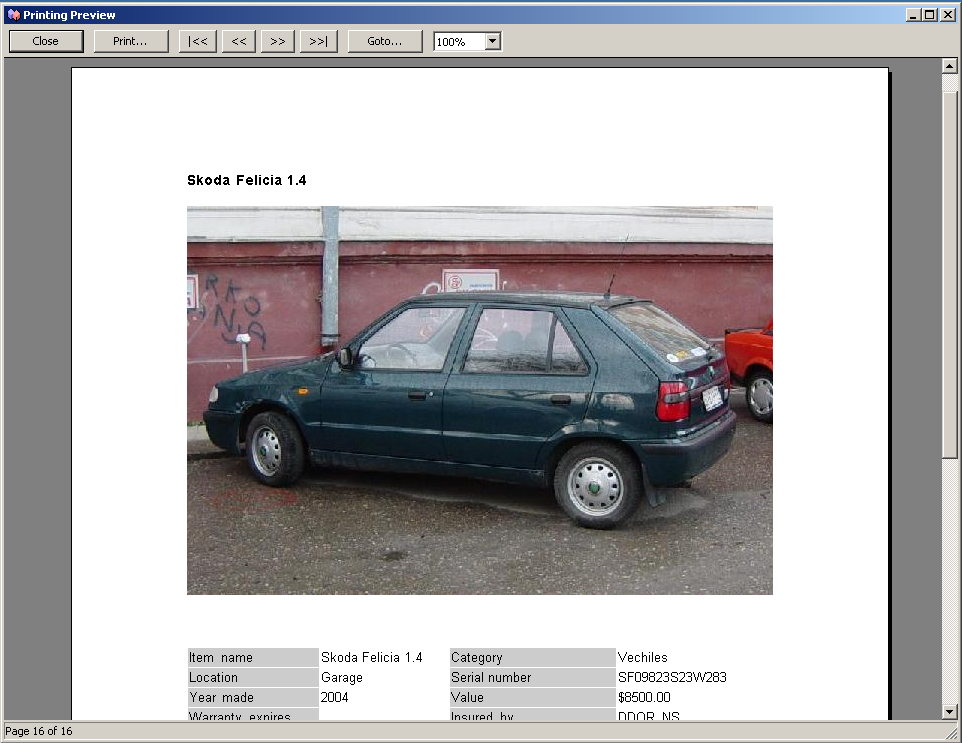
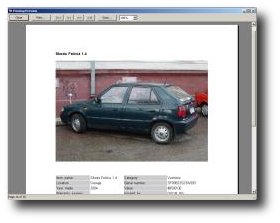
- In case of disaster, have the list ready for the insurance company
- Keep record of things you borrowed to others
- Note repairs and maintenance costs
- Keep track of things you put in boxes when you move
- Track multiple locations of your business
- UTF8 enabled - enter data in any language you use
- Modern, easy to use interface
- Works on Windows 7, 8, 10 and 11, both 32bit and 64bit versions supported
- Ability to import data from Quicken Home Inventory
Since version 3.00 all three formats .QHI, .MDF and .IDB are supported.
- Try it now or Learn more...
|
Quote from one of the users:
“I have spent years building my Home Inventory using Quicken Home
Inventory and very deceived when Intuit told me that they will not work
on their program anymore to make it run in Windows 7.
I have looked everywhere on the Web only to find that all QHI users
were in the same situation, trying to salvage their Home inventory
Database until I discovered that a new release of Attic Manager just
improved with a very new feature that now imports
QHI database with the associated pictures. It took me minutes to
install the software in my Win 7 64-Bit computer, and less than
3 minutes to import my complete QHI database into ATTIC MANAGER.
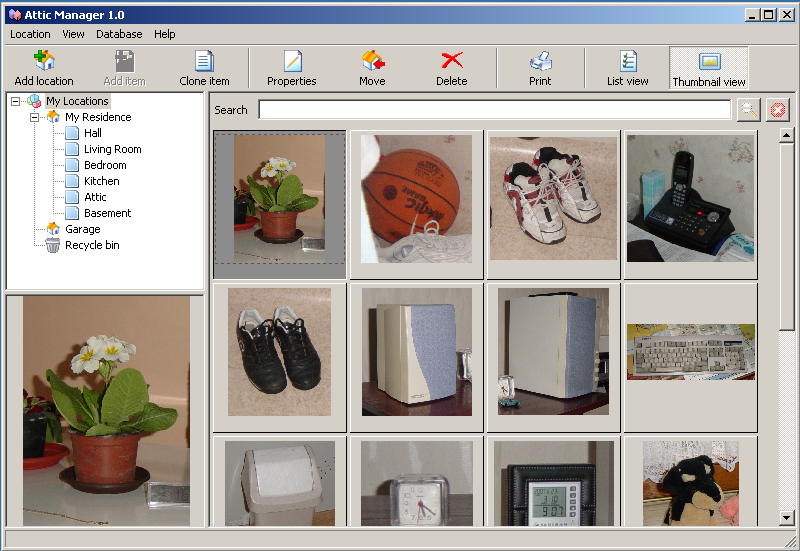
The result was perfect, every item was there with it's picture and data.
It took me years to build my personal Home Inventory with QHI, and now
I can just continue adding "my stuff".”
Andre Herard, Montreal Canada
|

more information | download trial version | order now
|